Responsible Conduct of Research (RCR) fosters ethical principles, professional standards, and best practices guiding researchers to conduct their work with integrity, transparency, and accountability. RCR training is required by the university and by most sponsors. RCR requirements are separate from sponsor’s Research Security Training (RST) requirements, though the content overlaps.
RCR Training Requirements
The requirements to complete RCR training vary for individuals based on funding agency and career level. See WashU’s Responsible Conduct of Research Policy for a table with requirements and deadlines.
- For NIH Training requirements, see NOT-OD-10-019.
- For NSF Training requirements, see PAPPG 24-1.
RST Training Requirements
RCR requirements are separate from a sponsor’s Research Security Training (RST) requirements. Research Security Training requirements can be met through either of these courses:
- Responsible Conduct of Research (RCR) Online Training – required for initial RST training
- Research Security Training Refresher – available for ongoing completions after meeting prerequisite above
See the Research Security Training Policy for details.
RCR Course Types
When considering RCR and RST training requirements, as well as the funding agency requirements, it is important to complete the appropriate course.
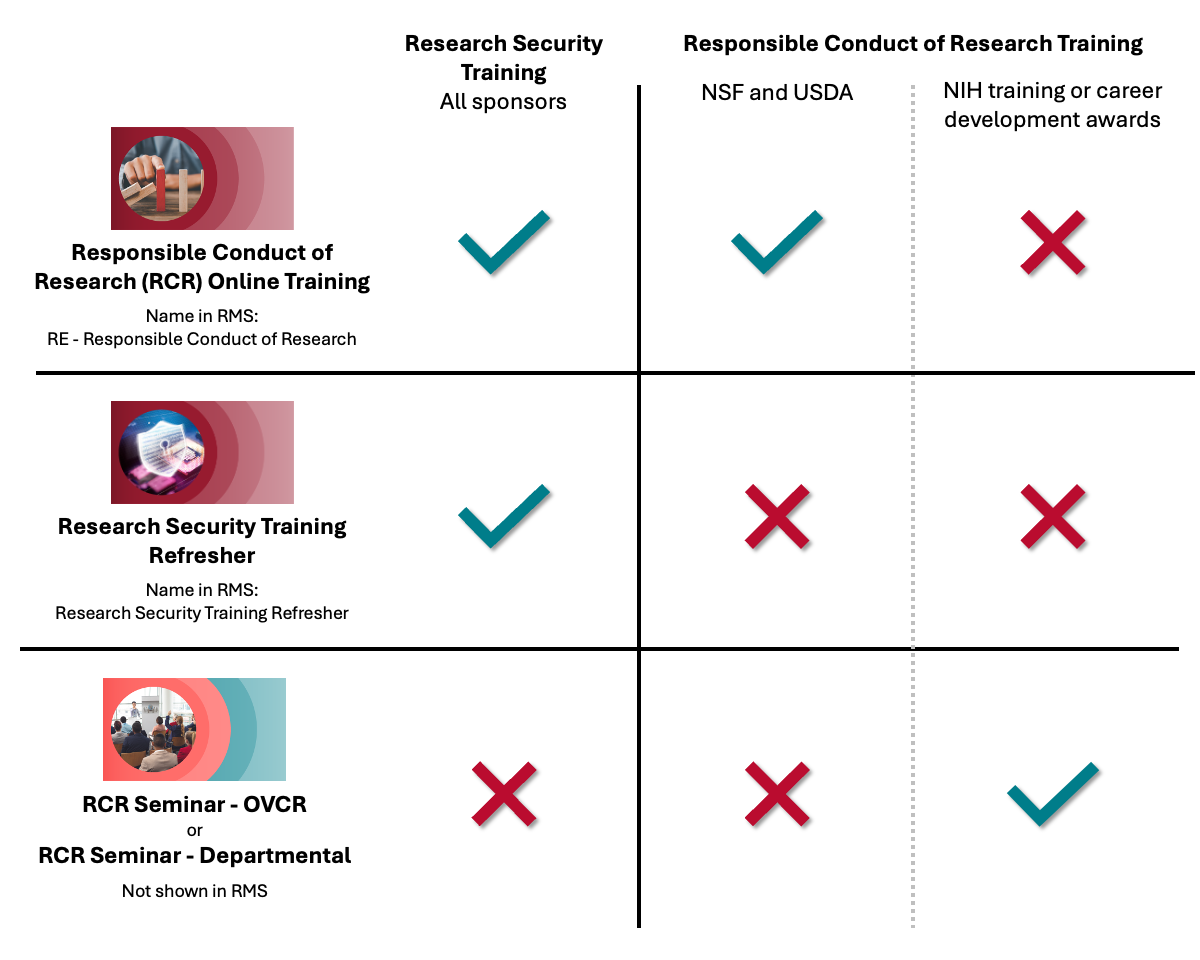
Recording RCR Training Completions
RCR training compliance is monitored at the departmental or school level. Some schools may offer their own specialized trainings tailored to discipline, career stage, or sponsor requirements. RCR trainings must meet the training requirements of the sponsor (see NIH RCR training requirements or NSF RCER training requirements). Departments are encouraged to submit training rosters to REI so their learners’ records can be updated in Workday Learning.
Tracking Compliance through Workday Learning
Security & Access
To access training records for other individuals at the university, you must have the appropriate security access in Workday. See Reporting on Training in Workday – Security for instructions on how to request access.
Access to training records also allows administrators to generate a certificate of completion. See Generate a Certificate for Someone Else for detailed instructions.
Learner Provides Certificate to Administrator
If you need the learners in your school/department to provide you with their certificate of completion, they can find instructions on how to run a report in Workday Learning to generate their own certificate. Direct learners to the instructions on the Generate Certificate of Completion page.
Administrator Runs Report for Training Completions
Reporting for NIH
- Go to the Learning tab in Workday Learning
- In the search bar, enter: RPT7270 – WU – Learner Records (Assignments, Enrollments & Completions)
- Select the report
- Select your learner or a group of learners
- For individual learners, use the Learning Participant field to search for their name.
- For records from multiple people in a department, leave the Learning Participant field blank and use the Supervisory Organization with Manager (SupOrg) field and check the box for Include Subordinate Organizations.
- Inactive Workers = retired, terminated
- Extended Enterprise Learners = students, academic affiliates, guests
- Review and adjust filters:
- In Enrolled Content, search “RCR” then select the NIH RCR courses:
- RCR Seminar – OVCR
- RCR Seminar – Departmental
- DO NOT SELECT: Responsible Conduct of Research (RCR) Online Training
- Learning Completion Status: includes Completed and Expired
- Include Only Most Recent Completion: if you need all historical completions of RCR training (such as when tracking hours of completion), then you will uncheck the box. If you only want the most recent completion date, check the box.
- Date Range: Enter the timeframe for course completion. Leave blank if you want all past completions.
- In Enrolled Content, search “RCR” then select the NIH RCR courses:
- Click OK
- Locate the correct record and review completion details.
- The training hours are displayed in the column “Responsible Conduct of Research Units.”
- 1 unit = 1 hour
- The training hours are displayed in the column “Responsible Conduct of Research Units.”
- Select Export to download the report to Excel.
Reporting for NSF
- Go to the Learning tab in Workday Learning
- In the search bar, enter: RPT7268 – WU – Learner Status Report for Assigned Learning
- Select the report
- Select your learner or a group of learners
- For individual learners, use the Learning Participant field to search for their name.
- For records from multiple people in a department, leave the Learning Participant field blank and use the Supervisory Organization with Manager (SupOrg) field and check the box for Include Subordinate Organizations.
- Extended Enterprise Learners = students, academic affiliates, guests
- Review and adjust filters:
- In Learning Content, search “RCR” and select the NSF RCR Course: Responsible Conduct of Research (RCR) Online Training
- DO NOT SELECT: RCR Seminar – OVCR
- DO NOT SELECT: RCR Seminar – Departmental
- Assignment Status: Select “Completed” and “Open”
- Assignment Mechanism: Leave blank unless you need this detail
- Date Range: Enter the timeframe for course completion. Leave blank if you want all past completions.
- Include Retraining Assignments Not Yet in Retraining Window? Do not check.
- Include Open Assignments with Inactive Content? Do not check.
- Include Non-Required Assignments? Do not check.
- In Learning Content, search “RCR” and select the NSF RCR Course: Responsible Conduct of Research (RCR) Online Training
- Click OK
- Locate the correct record(s) and review completion details.
- See the Assignment Status column for completion status.
- Select Export to download the report to Excel.